

How can admin add, edit or delete contacts for a child ?
Replied by : support@icaresoftware.com
Adding contacts for a child is easy, log in to your iCare account and follow these instructions,
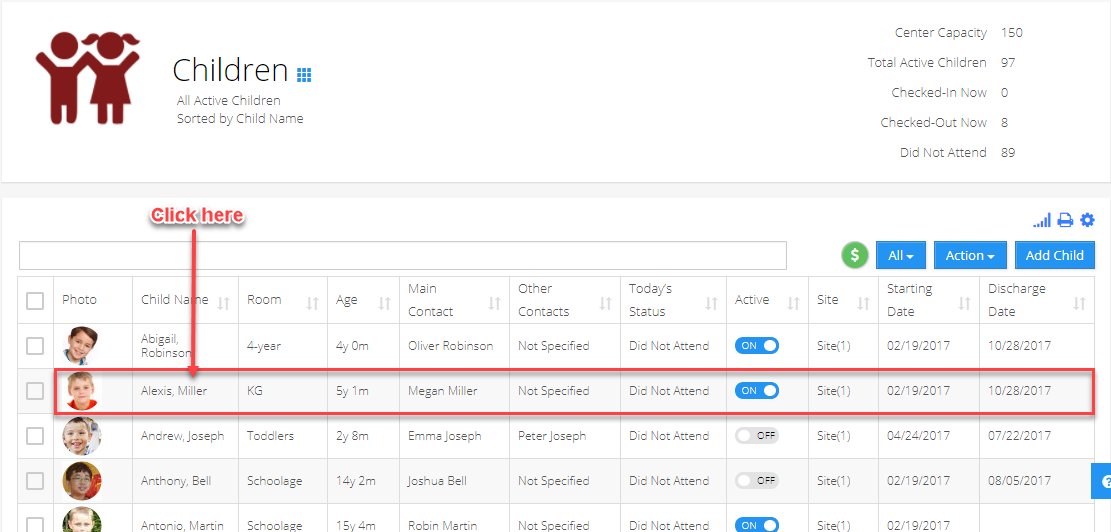
- Select and click a child you wish to add contacts to,
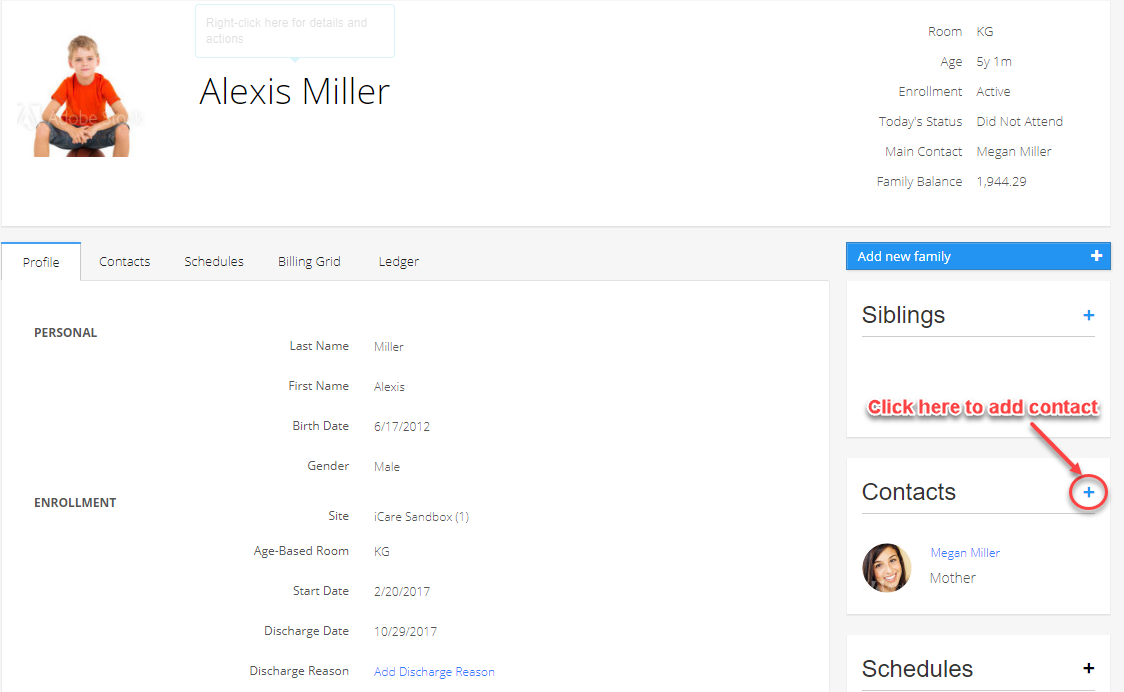
- You’ll be directed to the child’s details page, search for the Add Contact button (‘+’) on the right-side of your screen and click the ‘+’ sign to add a contact,
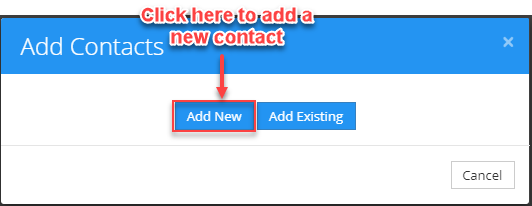
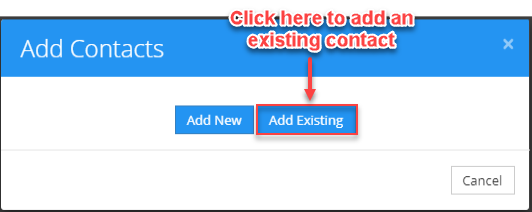
- An Add Contact pop-up will appear with two options, Add New and Add Existing, if you wish to add a new contact to the child, click the Add New button,
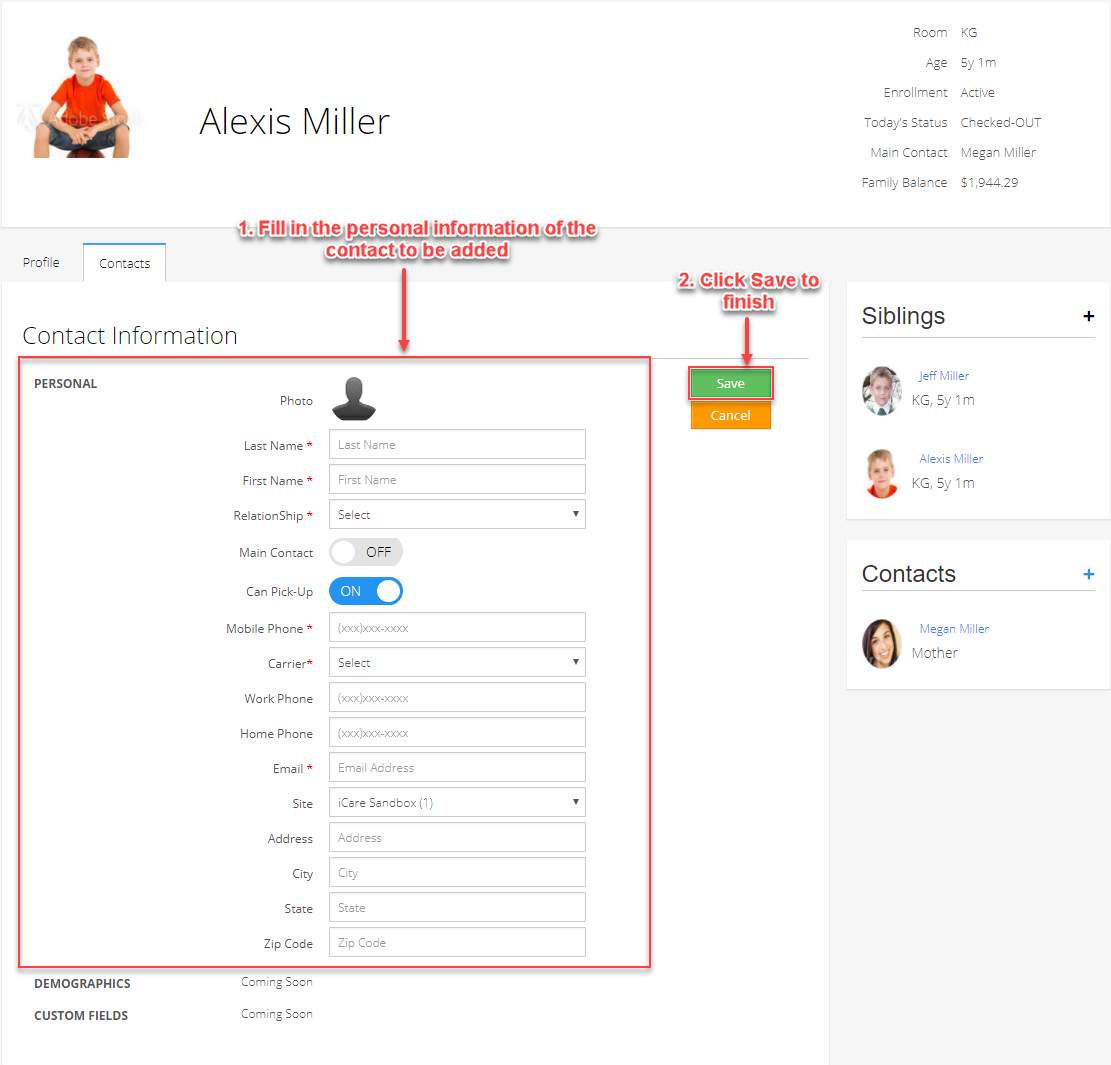
- You’ll be directed to the Contact Information form, please fill in the information carefully and click Save to finish adding,
- Or, if you wish to add an existing contact to the child, please click the Add Existing button on the Add Contact pop-up,
- Add contacts form will pop-up on your screen, enter the existing contact name to search in the Contact Name field, then, select the contact name from the Select Contact drop-down list and select the Relationship of the contact with the child. Now, click proceed further to add the existing contact,

- The added contact will be visible in the Contact Widget bar and the Contact details page of the Child’s Profile.
Edit Contact:
To edit a contact, scroll down to the contact under contacts tab.
Click on the pencil icon next to the information you want to edit. Edit the information and click save.

Delete Contact:
On the child profile page, choose the contact you want to delete. Hover the mouse next to the contact name in the Contacts column on the right side of the page, then click on delete icon.
Choose the option from the list and click proceed.